
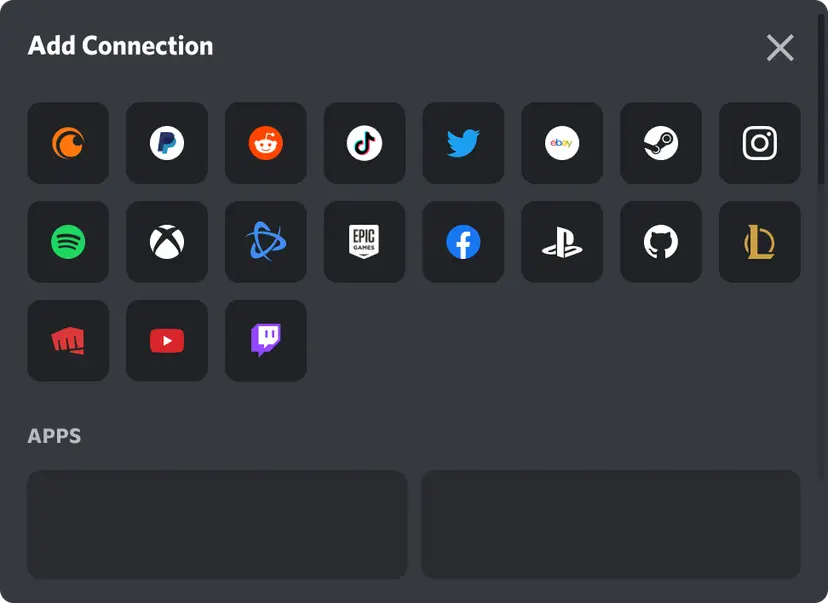
What are Discord Connections?
What is .well-known?
How to Link a Website to Connections in Discord
- Open the Discord Connections Menu by logging into your Discord account.
-
Click the gear icon next to your profile:
- Bottom left corner on Desktop
- Top right corner on Mobile
- Navigate to User Settings.
-
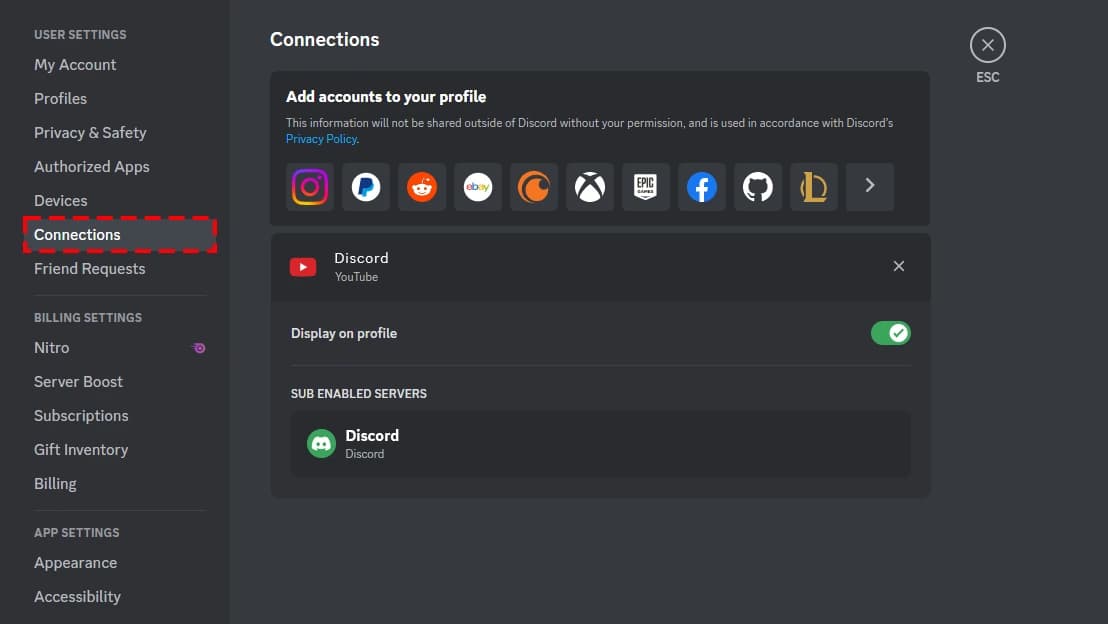
In the left menu, find and click Connections.
-
You will see a list of services that can be connected.
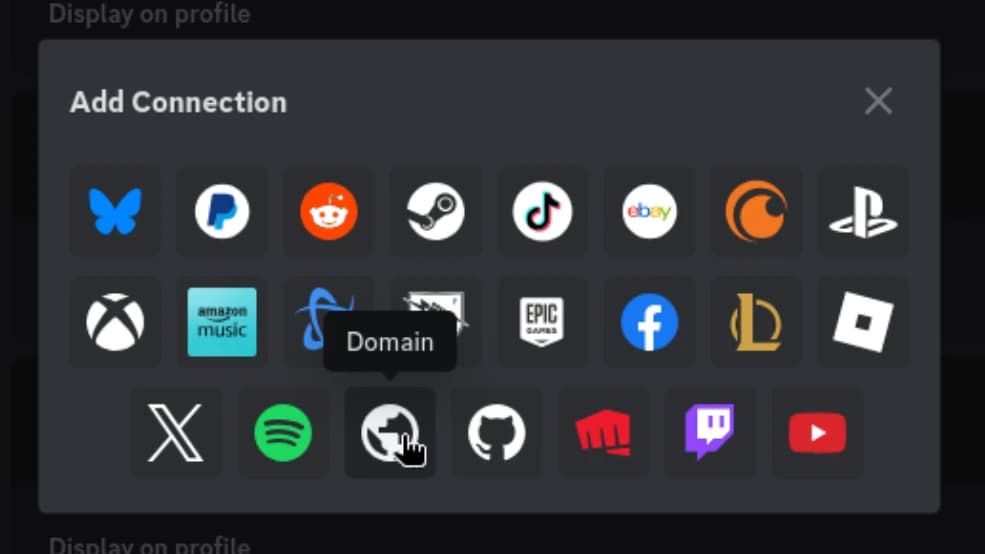
Add a Service or Website URL
-
Click the icon of the service you want to link. If you want to link your website domain, enter the website URL, after which a verification prompt will appear like this:
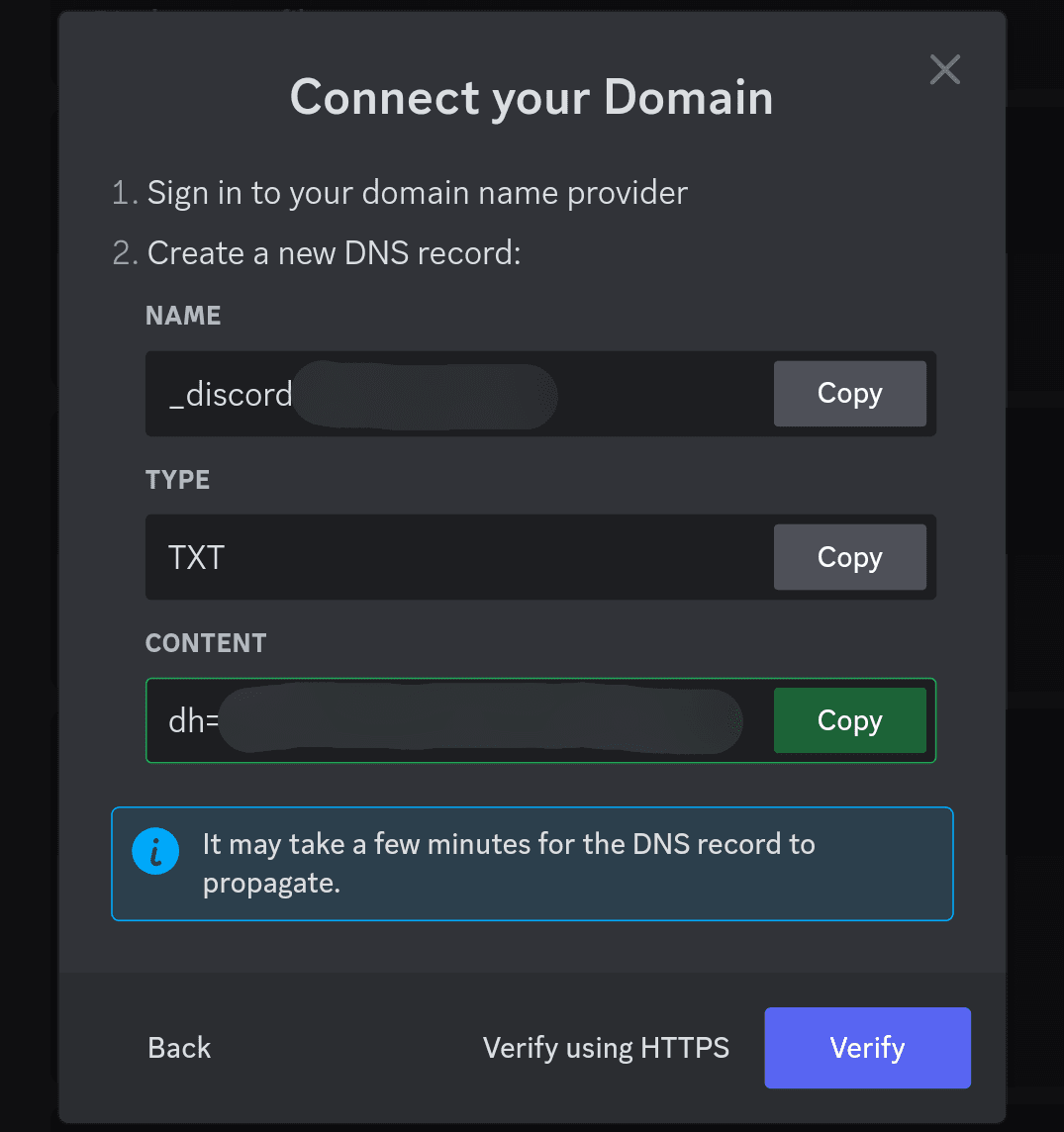
- Copy the verification token in the CONTENT field.
Create .well-known Folder
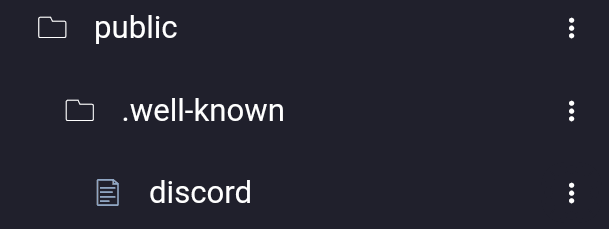
- Create a new folder named .well-known inside the public folder (Or project root).
-
Inside the .well-known folder, create a new text file named discord without any extension, and insert the verification token you copied earlier into the file, then deploy your website, then press the Verify button.
 Once linked, the account or service you added will appear on your Discord profile. Friends or community members can see it if you choose to share it.